
Custom Metadata In ImageKit DAM
Structure and organize your media library with custom metadata fields for easy asset discovery and management.
How to organize assets with custom metadata in ImageKit DAM
- Navigate to ImageKit DAM settings and create a new custom metadata field.
- Choose the metadata field name, label, and select the type (such as Boolean, Text, or Date).
- Optionally set a default value to make the field mandatory for all assets.
- Go to 'Default upload parameters' settings to configure custom metadata that applies to all new uploads.
- Select an existing asset, click 'Preview', update the custom metadata section, then click 'Save'.
- Apply custom metadata to folders by selecting the folder and following the same steps.
- Add custom metadata to media collections in your ImageKit DAM.
- Set custom metadata fields when creating a new media collection.
- Configure custom metadata when creating a new folder in ImageKit DAM.
- Use custom metadata as a filter during your creative workflow to find assets quickly.
- Combine custom metadata with other advanced filters to narrow down to specific assets in seconds.
Explore More Demos
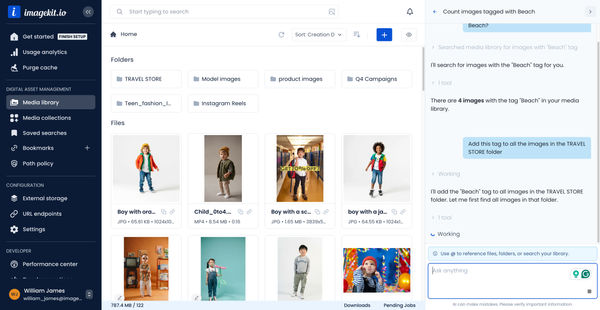
DAM Agent
Manage your media library through natural language with DAM Agent, an AI assistant that searches, tags, organizes, and operates on assets for you.
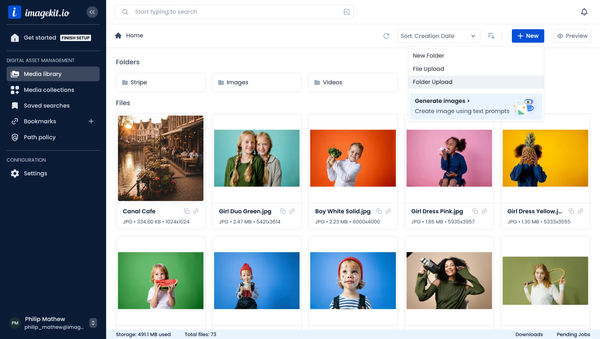
Upload Assets to ImageKit DAM
Easily upload and manage your assets in ImageKit's DAM with support for bulk uploads, drag-and-drop, and multiple file formats.
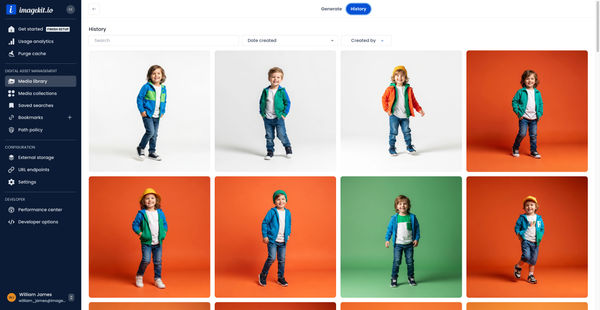
Generate Images with AI
Use AI-powered image generation to create stunning visuals, extend images, and generate backgrounds automatically.
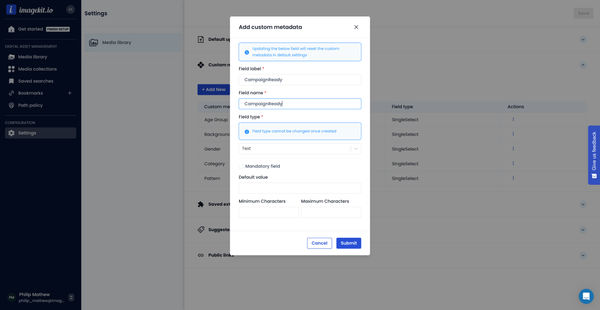
Custom Metadata In ImageKit DAM
Structure and organize your media library with custom metadata fields for easy asset discovery and management.

AI Tasks for tagging and metadata
See how to use ImageKit's AI Tasks to automatically tag and classify assets in your DAM, making them instantly searchable and organized.
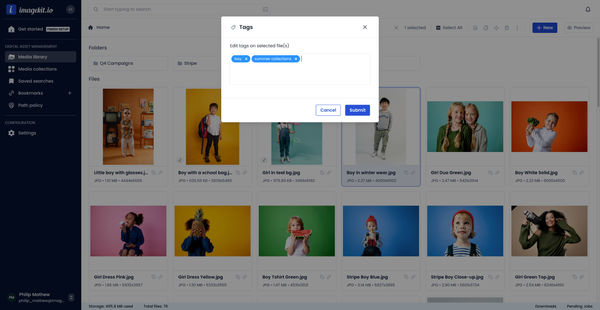
Manual and Standard AI Asset Tagging
Use Google and AWS AI services to tag and categorize your assets to make them instantly searchable and properly organized.