
Commenting in DAM
Collaborate effectively and keep track of feedback in your DAM with built-in commenting.
How to share feedback and track changes using comments on assets
- Open the asset details page and navigate to the Comments tab to view all comments.
- Click a point on the image where you want to leave a comment.
- Type '@' to tag team members in your comment for notifications.
- For video assets, observe that timestamps are captured with each comment for precise feedback.
- Reply to comments to create conversation threads that stay organized under each comment.
- Click any comment to jump to the exact point on the asset where it was placed.
- Use comment actions: copy conversation link, delete comments, or resolve them using the tick icon.
- Apply the filter option to view only unresolved comment threads.
- Use the sort option to view recent activity or organize threads by your preferred order.
- Click on version links in comments to navigate to the specific asset version where the comment was made.
- Access the notification center to track all comments and mentions across your assets.
- Filter notifications by unread items or mentions, and clear them after reviewing.
Explore More Demos
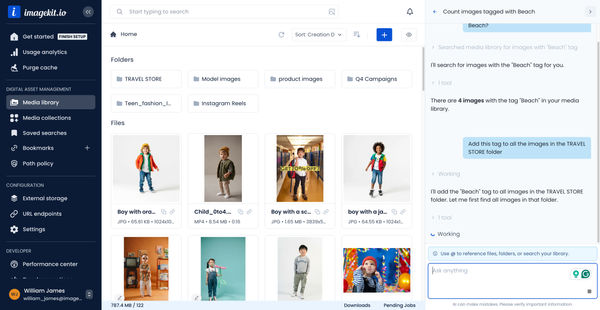
DAM Agent
Manage your media library through natural language with DAM Agent, an AI assistant that searches, tags, organizes, and operates on assets for you.
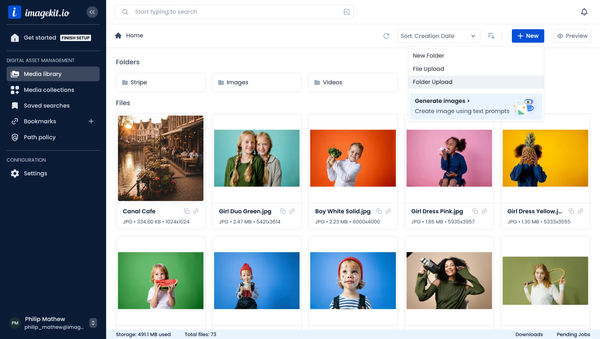
Upload Assets to ImageKit DAM
Easily upload and manage your assets in ImageKit's DAM with support for bulk uploads, drag-and-drop, and multiple file formats.
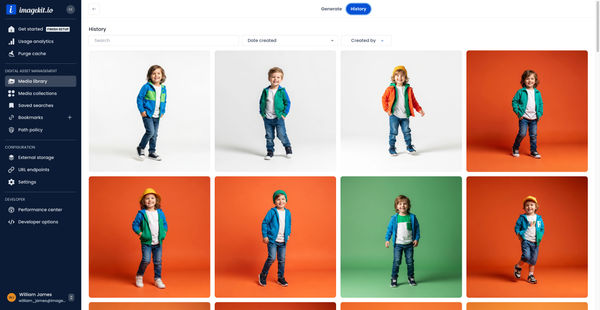
Generate Images with AI
Use AI-powered image generation to create stunning visuals, extend images, and generate backgrounds automatically.
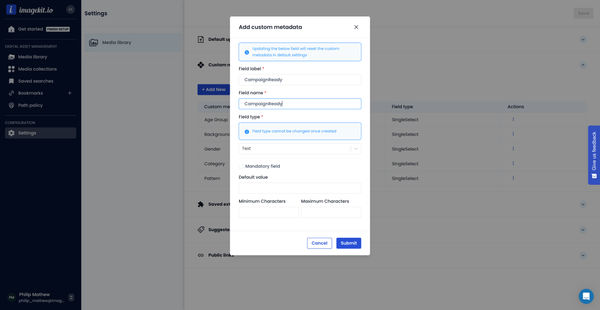
Custom Metadata In ImageKit DAM
Structure and organize your media library with custom metadata fields for easy asset discovery and management.

AI Tasks for tagging and metadata
See how to use ImageKit's AI Tasks to automatically tag and classify assets in your DAM, making them instantly searchable and organized.
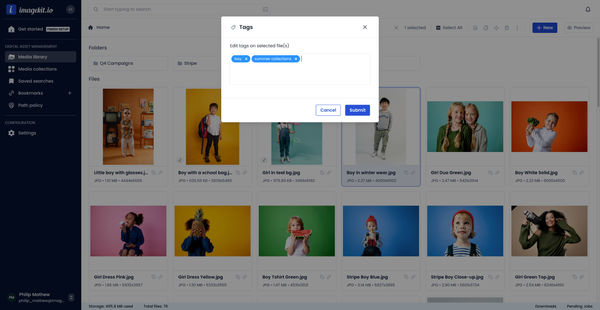
Manual and Standard AI Asset Tagging
Use Google and AWS AI services to tag and categorize your assets to make them instantly searchable and properly organized.