Amazon S3 is the default home for video assets on AWS. It scales without ceremony, keeps original files safe, and integrates with everything else in the AWS ecosystem.
What S3 doesn't do is stream those videos the way YouTube or Netflix do. Out of the box you get progressive MP4 delivery, which is fine for short internal clips but not enough for a real video experience.
In this post we'll look at how to stream videos from S3 in 2026, why the full AWS Elemental stack (MediaConvert plus MediaPackage plus CloudFront) is more to set up than most teams need, and how to get progressive streaming optimization, adaptive bitrate streaming, format optimization, and real-time transformations by attaching ImageKit to your existing S3 bucket.
Using AWS S3 for video hosting and streaming
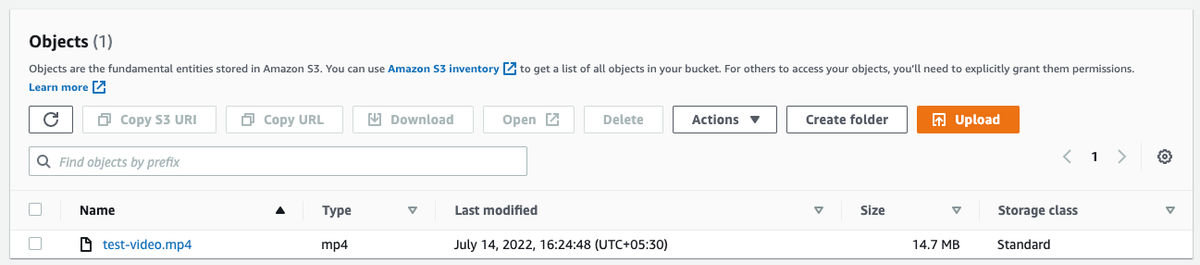
For this demonstration, we have uploaded a 14.7 MB sample MP4 video test-video.mp4 to an S3 bucket.
If the object is publicly readable, you can drop the S3 URL straight into a <video> tag:
<video controls>
  <source src="https://bucketname.s3.us-east-1.amazonaws.com/test-video.mp4" type="video/mp4" />
</video>
When you load this URL on an HTML page, the browser issues multiple range requests to access the file in smaller chunks. The response status code for each request is 206, indicating a partial response from the server that matches the browser's requested segment.
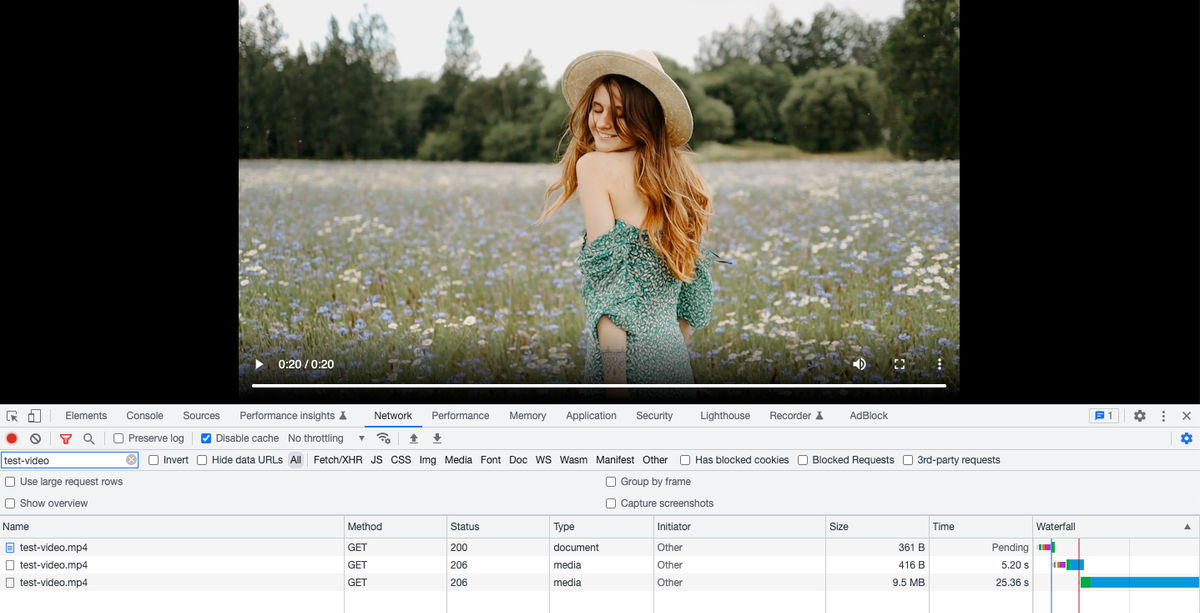
This is progressive MP4 playback via HTTP range requests, which works as a baseline. It is not, however, what services like YouTube and Netflix do. Those use adaptive bitrate streaming, where a larger video file is broken into smaller chunks encoded at different bitrates. A manifest file describes the available chunks. A video player then decides which chunk to load and at what resolution based on the viewer's device and network conditions. That's the adjustment in quality you've probably seen on YouTube when your connection slows down.
Progressive MP4 delivery can be acceptable for short clips. It gives every viewer the same encoded file. But S3 does nothing to optimize progressive streaming: there is no format or bitrate optimization, no resizing to a lower resolution for mobile, no thumbnail generation, and no way to adapt the file per device. Therefore, for anything beyond simple internal clips, you need a real streaming pipeline on top of S3.
Adding a CDN with S3 for faster delivery
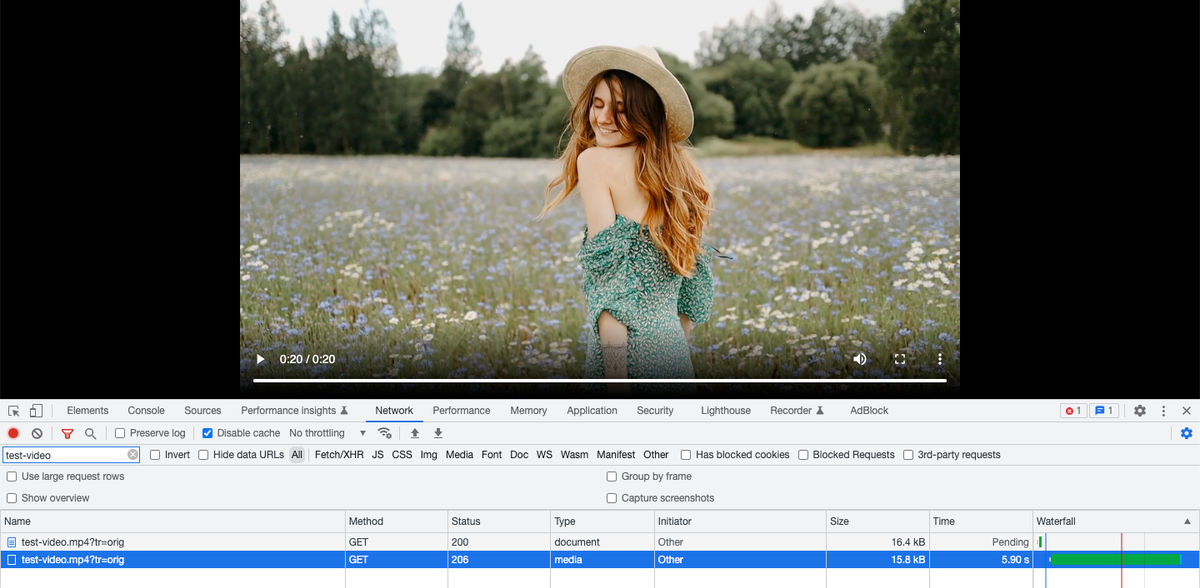
You can pair S3 with CloudFront to cut the round trip from a centrally located bucket. That helps load time, but none of it solves the streaming problems above: the same 14.7 MB MP4 is now just delivered from the nearest edge instead of us-east-1.
Why the AWS Elemental stack is more to set up than most teams need
AWS's recommended path for VOD streaming is MediaConvert. You upload the original to S3, run a transcoding job that produces HLS or DASH manifests and segments, write them to an output bucket, and deliver through CloudFront. The result works: it is the same primitive Netflix and Disney+ are built on.
In practice, MediaConvert rarely ships alone. A production VOD setup usually adds MediaPackage for just-in-time packaging, DRM, and DVR features, plus EventBridge or SNS for job orchestration, and a third-party player for browsers that don't support HLS natively. For live or interactive streaming, Amazon IVS is a separate service with its own SDKs.
What you take on with the VOD path:
- A job-definition format with about 200 lines of JSON per pipeline
- Two pricing tiers (Basic vs Professional) with normalized-minute multipliers that scale with resolution, frame rate, and codec, pricing every job before you submit it
- Queue management, retry logic, and failure alerting through SNS or EventBridge
- An ABR ladder design (which resolutions to encode, at what bitrates)
- A second S3 bucket for outputs and lifecycle policies for cleanup
- MediaPackage configuration if you need DRM or DVR-style playback features
- CloudFront cache invalidation strategy when masters change
- A player integration (Video.js + hls.js, Shaka, or a paid player vendor)
A baseline VOD pipeline using MediaConvert, EventBridge, CloudFront, and a third-party player runs about four to six weeks of senior engineering work to get to production, plus ongoing maintenance. For a media company shipping hundreds of new hours of video per week, that investment pays for itself. For a marketing site, a course platform, a help center, or an e-commerce or travel website with a few videos, it usually does not.
There's also the AWS console itself to reckon with. Wiring these services together means moving between MediaConvert, S3, CloudFront, IAM, and EventBridge, each with its own screens and terminology, which is a lot to hold in your head before a single video plays. MediaConvert exposes real depth here (per-codec settings, custom ABR ladders, granular encoding controls) and that control matters when video is your core product. But most teams aren't building the next Netflix and don't need that surface area exposed to them. They need sensible defaults, a video that plays well across devices and networks, and the freedom to get back to the rest of their roadmap.
Easy video streaming from S3 with ImageKit
There is a third option that doesn't appear in AWS's guide: attach your existing S3 bucket to ImageKit and let ImageKit's URL-based video API handle the streaming pipeline. Your videos stay in S3 and the setup takes about fifteen minutes.
ImageKit is a real-time media optimization, transformation, and management platform that natively integrates with popular cloud storage including AWS S3, whether the bucket is private or public. Once attached, ImageKit becomes an optimization, streaming, and delivery layer in front of your bucket.
Connecting AWS S3 to ImageKit
ImageKit needs read-only access to your bucket, and it supports both keyless and key-based access. The recommended, keyless approach is an IAM role that trusts ImageKit's AWS account, so there are no long-lived access keys to rotate or leak. If you prefer, you can instead provide a dedicated read-only access key scoped to the bucket. The exact policies, account identifiers, and dashboard steps can be found in the AWS S3 integration docs. Whichever method you choose, keep the access scoped to exactly the bucket that holds your videos.
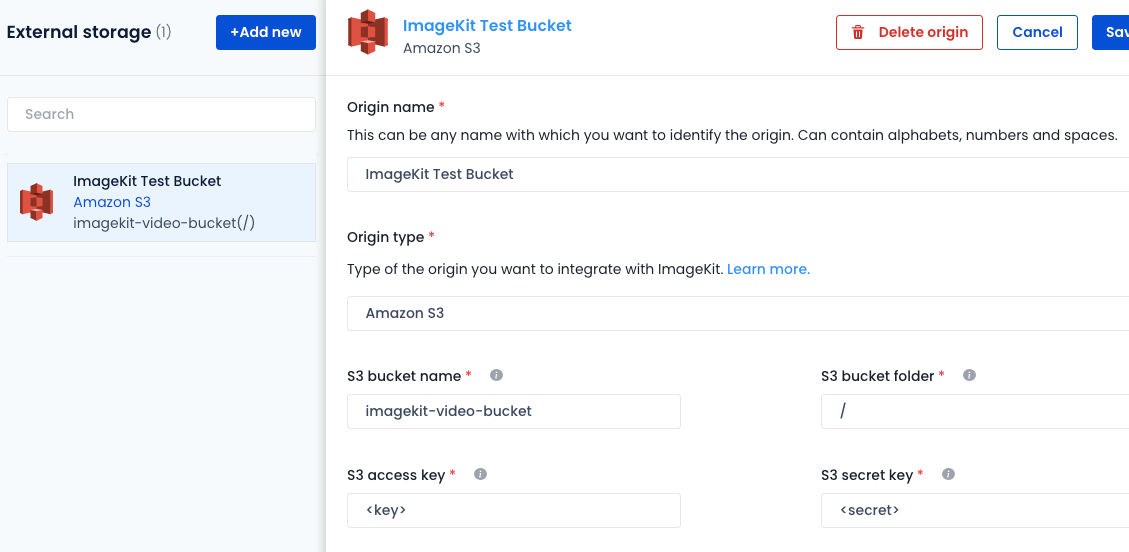
ImageKit does not move or copy any content from your S3 bucket. The integration provides on-demand access to the original file when a request comes in. The first request triggers any required encoding or transformation, and the result is cached at the CDN edge for subsequent requests.
Streaming optimized video with ImageKit and S3
With our bucket attached to ImageKit, we can access our video at:
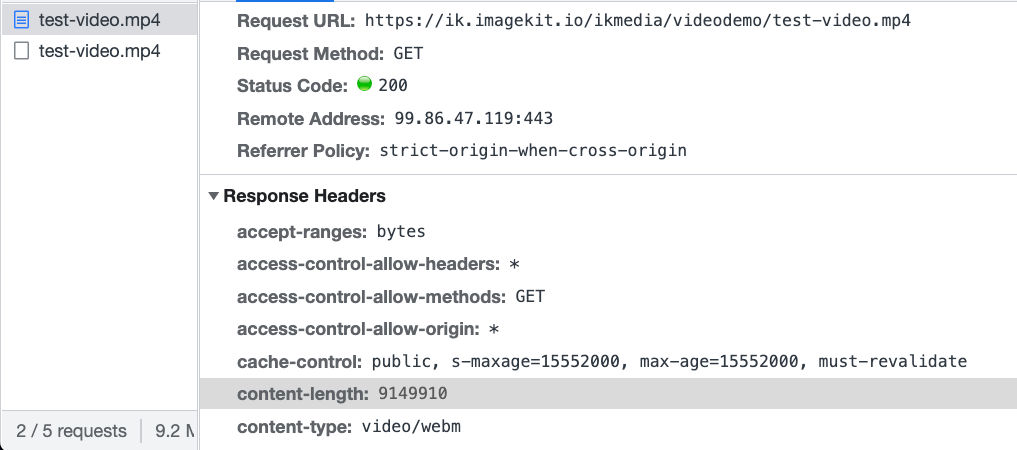
https://ik.imagekit.io/ikmedia/videodemo/test-video.mp4Progressive Streaming
When you load a video using this URL, ImageKit automatically identifies the requesting device and its video format support to deliver the video in WebM (VP9 or AV1 codecs) or MP4 (H264), the two most widely used web-safe video formats. ImageKit also compresses the video in near real time without significantly degrading its visual quality.
These optimizations are dashboard settings, not code. Turn them on once and ImageKit handles the rest when you deliver video through its URL.
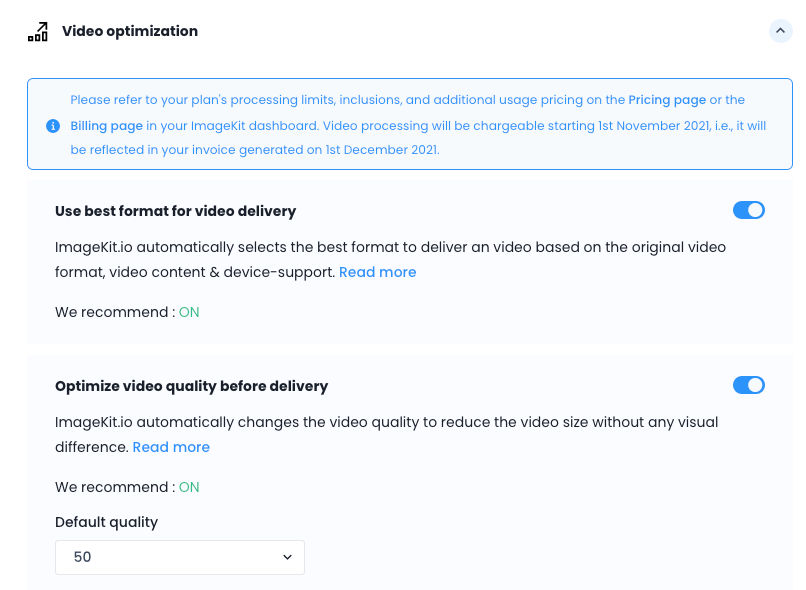
When we deliver our 14.7 MB sample video through ImageKit, it goes from 14.7 MB to 9.1 MB when compressed and delivered as WebM in Chrome. Exact percentage savings will vary across videos, but we can see that for simple progressive streaming optimization, no encoding jobs need to be run, and there is no setup beyond the bucket attachment.
ImageKit delivers through AWS CloudFront out of the box, so the CDN layer you'd otherwise stand up and maintain yourself is already handled.
Transforming videos for different requirements
ImageKit offers a URL-based real-time video transformation API, making it easy to adapt videos to different devices and placements. You can resize, crop, watermark, generate snippets, or generate thumbnails in real time. These transformations help you deliver a complete video experience on the client device without external products or custom code.
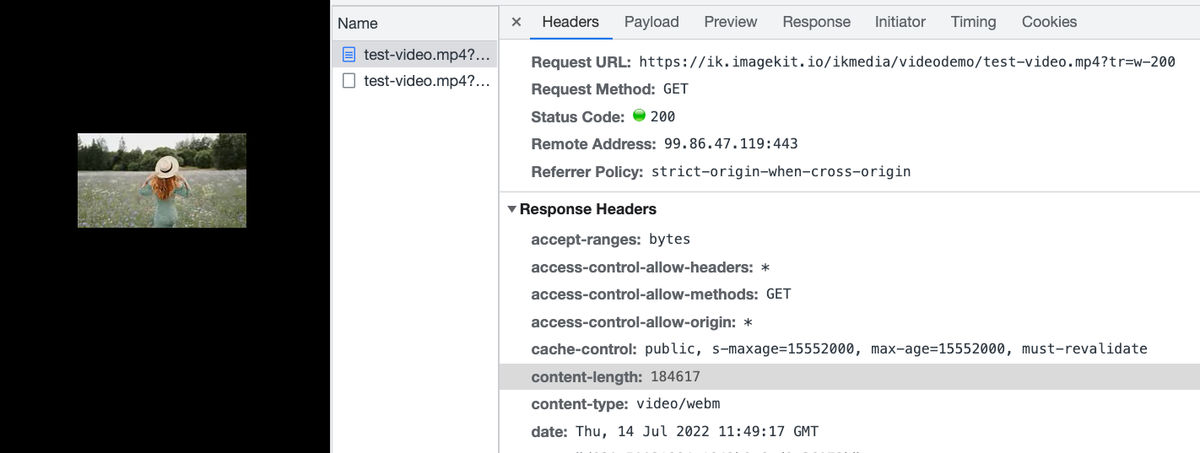
To scale our video to 200 px width, add the transformation parameter tr=w-200 to the URL:
https://ik.imagekit.io/ikmedia/videodemo/test-video.mp4?tr=w-200ImageKit still applies format and quality optimization while resizing. The video gets compressed to 184 KB and is delivered as WebM.
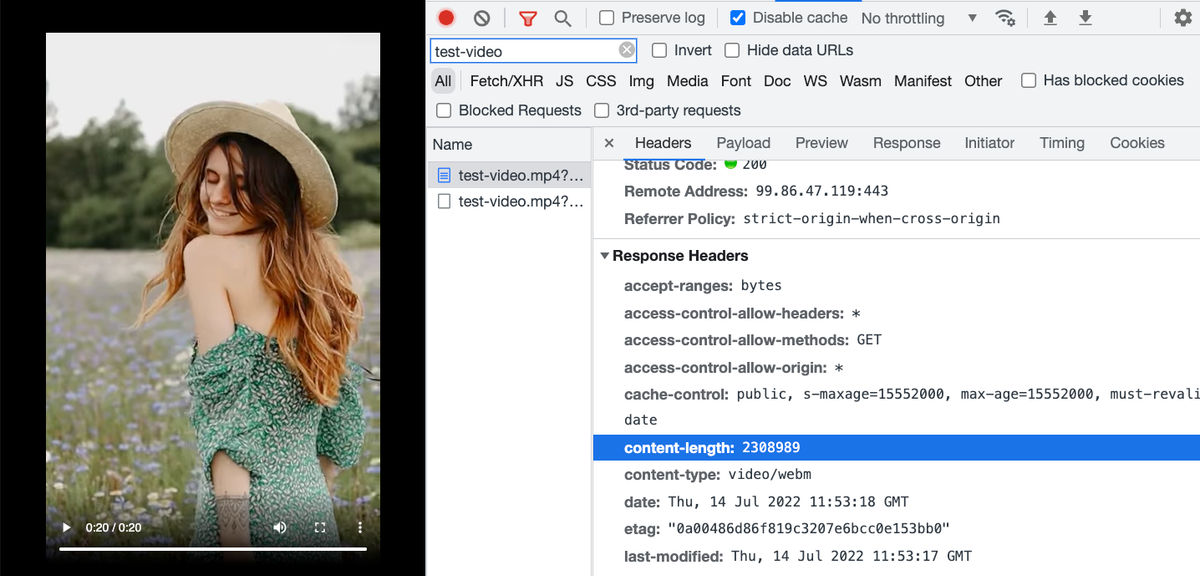
For vertical formats like Instagram Reels or TikTok-style content, specify both height and width. ImageKit handles the cropping in real time and returns the requested aspect ratio. For a 400 by 640 vertical video:
https://ik.imagekit.io/ikmedia/videodemo/test-video.mp4?tr=w-400,h-640The output is 2.3 MB.
For a deeper look at video cropping and resizing with ImageKit, see Crop and resize videos in React.
We can also watermark our video and control placement and formatting in real time. The example below uses ImageKit's layers syntax to overlay a logo image on the underlying video. You can also overlay text or another video on top of the base. No extensive setup. A URL change does it.
https://ik.imagekit.io/ikmedia/videodemo/test-video.mp4?tr=w-400,h-640,l-image,i-logo_HuFO6vJ2x.png,lx-10,ly-10,w-200,l-end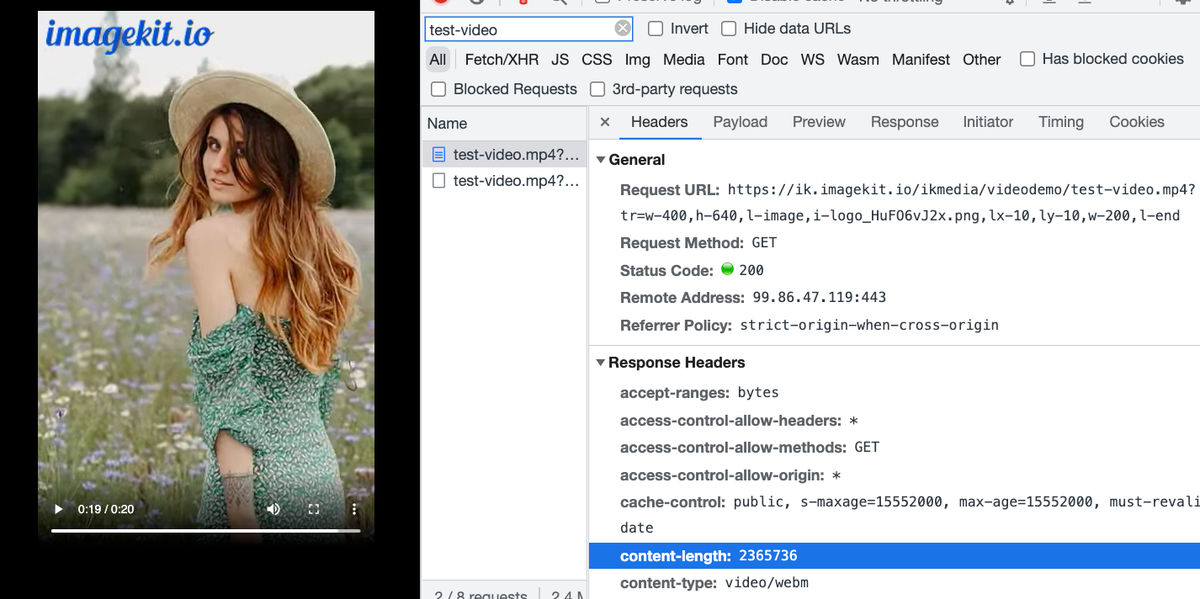
All of these transformations work without a specific player like Video.js. You can load the resulting URLs directly in a <video> tag and the browser will play them.
Adaptive bitrate streaming with S3 and ImageKit
Adaptive bitrate streaming encodes videos at different bitrates and resolutions and switches between them based on the viewer's network and device. All popular streaming services use it, and it's the central capability you'd otherwise reach for MediaConvert (plus MediaPackage) to get.
ImageKit makes DASH and HLS available as URL parameters. As with everything else in the platform, you don't run encoding jobs or manage manifest files. You modify the URL.
For an HLS stream at 360p, 480p, and 720p:
https://ik.imagekit.io/ikmedia/videodemo/test-video.mp4/ik-master.m3u8?tr=sr-360_480_720For DASH, swap
ik-master.m3u8forik-master.mpd. The same source URL produces both protocols on demand.
When the URL is requested for the first time, ImageKit starts transcoding the video to the requested resolutions in the background, and if the processing takes long, the first request for a manifest may return a 202 response for the first few seconds. It stores the manifest file and segment chunks internally and serves them from the CDN on subsequent requests after all transcoding is complete.
For production workflows, trigger the ABS URL during upload/publish, listen for the webhook, and expose the player only after the
video.transformation.readyevent. This way, you avoid the 202 response and ensure a smooth experience for the first viewer. This is covered later in this guide.
You can load the manifest URL directly in any HLS-capable player. Safari supports HLS playback natively. For Chrome, Firefox, and Edge, use a JavaScript player such as Video.js, hls.js, or ImageKit's Video Player SDK. DASH usually requires a player such as Shaka Player or dash.js.
In the network panel of any browser, you can watch the player request a 360p segment first for fast initial load, then switch to 720p once the player determines the device and connection support it.
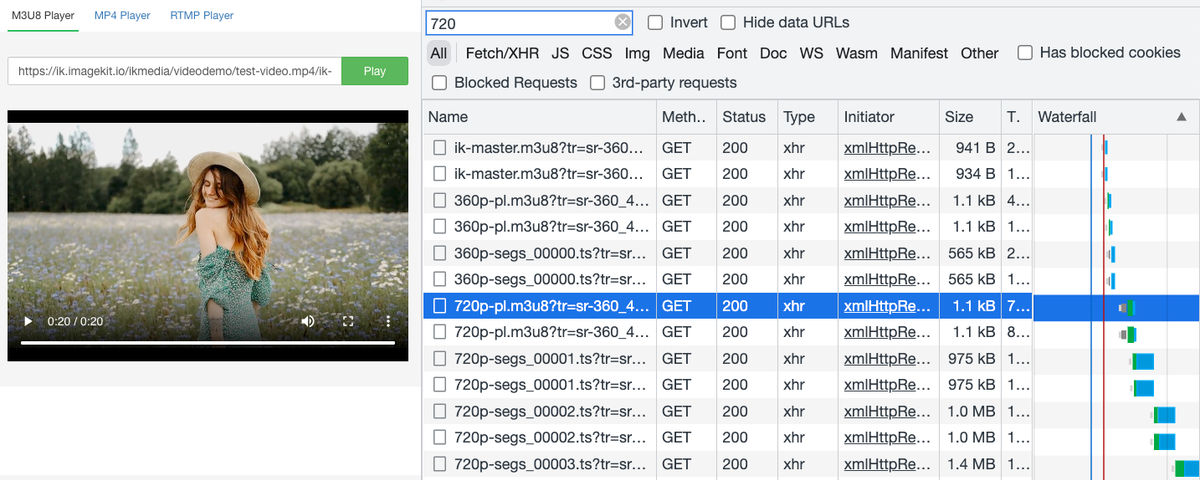
Skip the player setup entirely
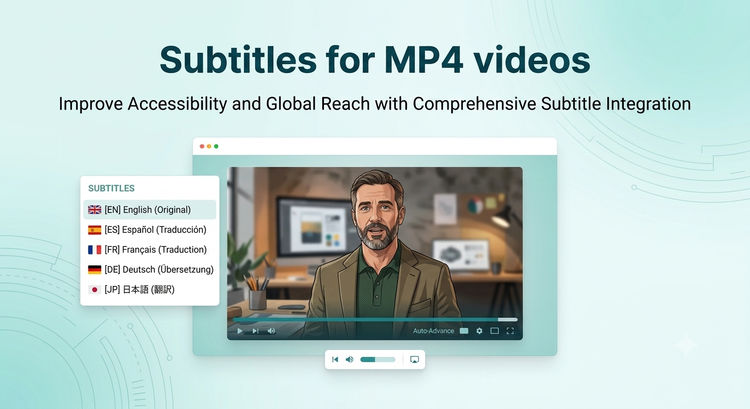
If you'd rather not wire up Video.js, hls.js, or Shaka yourself, ImageKit's Video Player SDK ships ready to play HLS and DASH streams out of the box. It also adds features you'd otherwise build separately, including AI-powered subtitles, translations, and auto-generated chapters, so a complete viewing experience is available without stitching together multiple libraries.
Webhooks for transcoding completion
Generating manifests and segments at multiple resolutions takes time on the first request. To improve the development experience and provide certainty about when an asset is ready, ImageKit offers video webhooks that fire on transcoding completion:
{
  "type": "video.transformation.ready",
  "id": "a03031b5-ad5f-4985-8cf5-4de67630f6d7",
  "created_at": "2026-05-15T12:00:11.703Z",
  "request": {
    "x_request_id": "fa98fa2e-d6cd-45b4-acf5-bc1d2bbb8ba9",
    "url": "https://ik.imagekit.io/ikmedia/videodemo/test-video.mp4/ik-master.m3u8?tr=sr-360_480_720",
    "user_agent": "Mozilla/5.0 (Macintosh; Intel Mac OS X 10.15; rv:101.0) Gecko/20100101 Firefox/101.0"
  }
}
Webhooks are optional. The transcoding process described above works the same whether or not you subscribe to them.
No re-processing required when delivery requirements change
One of the operational costs of a traditional MediaConvert pipeline is that changes to delivery requirements (a new watermark, a new aspect ratio, a new resolution tier) require re-running encoding jobs across your entire back catalog. That cost compounds as your library grows: you pay for the normalized encoding minutes, the additional S3 storage for derivatives, and the engineering time to coordinate the re-processing.
With ImageKit, requirement changes are URL changes. You modify the transformation parameters and the new variant is generated on the next request and cached at the edge. Videos that aren't requested are never processed. Videos that need an updated transformation get it the first time someone asks for it.
For a team weighing MediaConvert against ImageKit and worried about the operational overhead of running encoding jobs going forward, this is the piece that disappears entirely.
What we built
AWS S3 continues to be the right place to store original video assets. What it doesn't do on its own is turn those assets into a streaming experience: that requires either MediaConvert with its associated pipeline work or a real-time API like ImageKit on top of the bucket.
Keep your videos in S3 and attach the bucket to ImageKit as an origin. The setup takes about fifteen minutes. From that point, every video in your bucket is streamable through ImageKit's URL endpoint, with HLS or DASH adaptive bitrate, format optimization, real-time transformations, watermarking, and webhook notifications, all configured as URL parameters or dashboard settings.
Don't want to manage S3 at all?
ImageKit can host your videos directly in its media library. Creative and marketing teams often find uploading, organizing, and sharing videos there simpler than working with raw S3 storage, while still getting the same streaming and transformation capabilities.
ImageKit's free plan includes 500 seconds of SD video processing and 20 GB of streaming bandwidth per month, which is enough to validate the approach against your real content before committing.
Sign up for a free ImageKit account and try it against an existing video in your S3 bucket.
If your videos are on a different cloud provider, the same approach works for Azure Blob Storage and Google Cloud Storage.