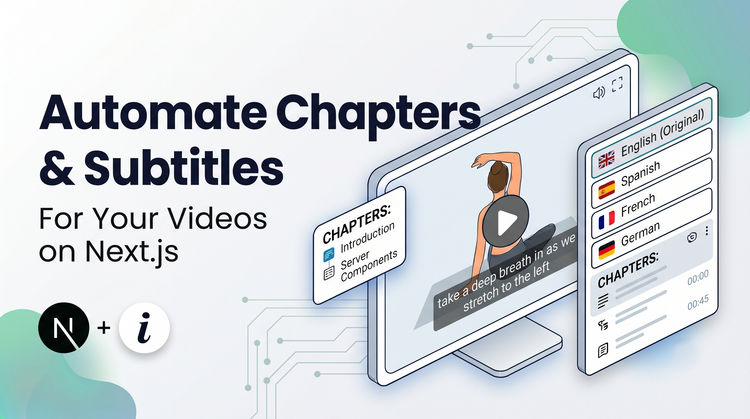
Chapters turn a long video into something viewers can actually navigate. Named markers on the progress bar let people jump straight to the section they care about, deep-link into a specific moment, and understand what a video covers before they hit play. Chapters also give search engines and social embeds structured content to surface - YouTube's chapter previews in search results are the most visible example.
You have an MP4 and you want chapter markers on it. There are three real options for that: embed the markers in the MP4 container, ship a separate WebVTT chapters track alongside the file, or hand a chapters config to a video player that knows what to do with it. This post walks through each, then shows the ImageKit Video Player SDK version that collapses the whole thing into one prop.
What "chapters" actually are
Chapters are named time markers inside a video: a start time, an end time, and a title. Two families of implementation carry that data:
- Embedded in the container. The MP4 file itself gets a chapter track baked in. Desktop players read it directly; the file is self-describing.
- Delivered alongside the video. A sidecar file, usually WebVTT, lists the same information. The video player loads it and renders the UI.
The container-embedded flavor is what you get when you download a movie and see chapter thumbnails in QuickTime or VLC. The sidecar flavor is what YouTube, Vimeo, and most web players actually use, because the browser video element has no built-in chapter UI.
Option 1: embed chapters in the MP4 container
The oldest way to add chapters to an MP4 is to write them into the container itself. Three tools cover almost every real-world case: mp4chaps, MP4Box, and ffmpeg.
Start with a plain text file describing your chapters. Both mp4chaps and MP4Box accept this format:
00:00:00.000 Introduction
00:02:26.470 Main content
00:05:02.140 Advanced topics
00:07:23.060 Q&A
00:09:22.810 Conclusion
With mp4chaps, save the file next to your video as video.chapters.txt and run:
mp4chaps --import video.mp4With MP4Box, pass the chapter file explicitly:
MP4Box -chap chapters.txt video.mp4FFmpeg reads chapters from its own ffmetadata format. It's more verbose, but it round-trips well through re-encoding pipelines:
;FFMETADATA1

[CHAPTER]
TIMEBASE=1/1000
START=0
END=146470
title=Introduction

[CHAPTER]
TIMEBASE=1/1000
START=146470
END=302140
title=Main content
Then remux to attach the chapters:
ffmpeg -i input.mp4 -i chapters.ffmetadata \
-map_metadata 1 -codec copy output.mp4Browsers do not expose container-level chapters through HTMLVideoElement. Chrome, Firefox, and Safari all silently ignore them during web playback. Container chapters are useful when the file leaves the web - a download, a desktop player, an editing timeline - not when it's played through a <video> tag.
The other cost is operational: you're modifying the original file. Every re-encode has to preserve or re-attach the chapters. Every CDN cache in front of the file needs a bust. And your chapter list now lives inside a binary, not next to your video record in the database. That's fine for a static download and painful for a content library.
Option 2: ship a WebVTT chapters track
The web-native way to attach chapters is a WebVTT file loaded as a <track kind="chapters">. The format is the same one you'd use for subtitles, with each cue's text acting as the chapter title:
WEBVTT

00:00:00.000 --> 00:02:26.470
Introduction

00:02:26.470 --> 00:05:02.140
Main content

00:05:02.140 --> 00:07:23.060
Advanced topics

00:07:23.060 --> 00:09:22.810
Q&A

00:09:22.810 --> 00:11:43.120
Conclusion
Wire it into your video element with a <track> alongside the source:
<video controls>
  <source src="https://example.com/video.mp4" type="video/mp4" />
  <track kind="chapters" src="/media/chapters.vtt" srclang="en" label="Chapters" default />
</video>
The good news is every major browser parses the file and makes it available on HTMLMediaElement.textTracks. Unfortunately, no browser renders a chapter UI for it. You get the data, but not the buttons on the progress bar.
If you want to render your own, iterate the cues:
const video = document.querySelector("video");
video.textTracks[0].mode = "hidden"; // parse but don't display as subtitles

video.textTracks[0].addEventListener("cuechange", () => {
  const active = video.textTracks[0].activeCues[0];
  if (active) console.log("Now in chapter:", active.text);
});

for (const cue of video.textTracks[0].cues) {
  // {startTime, endTime, text} - enough to draw a marker on the progress bar
}
That's the source data. Turning it into a scrubbable progress-bar UI with hover previews, keyboard navigation, and a "jump to chapter" menu is a separate project.
Option 3: use a player-specific chapter API
Most JavaScript video players close that UI gap by reading the same WebVTT file and drawing the chapter markers for you. The API is different per player; the data format is the same.
Video.js has chapter support built into core - the ChaptersButton component ships in the default control bar. Provide a kind: 'chapters' text track marked default: true and it renders a menu in the control bar automatically; no plugin, no extra call:
const player = videojs("my-video", {
  controls: true,
  sources: [{ src: "video.mp4", type: "video/mp4" }],
  tracks: [{ kind: "chapters", src: "/media/chapters.vtt", srclang: "en", default: true }],
});
Plyr accepts an inline markers array as a config option - bypassing WebVTT entirely for the simple case:
new Plyr("#player", {
  markers: {
    enabled: true,
    points: [
      { time: 0, label: "Introduction" },
      { time: 146, label: "Main content" },
      { time: 302, label: "Advanced topics" },
    ],
  },
});
The pattern is consistent across players: WebVTT is the data format, the player provides the UI. If you already ship one of these, adding chapters is a config change. If you don't, you're picking a player to add chapters.
Why this is more than most teams need
The pain here is that they're four decisions stacked on top of each other:
- Where does the chapter list live? A
.vttfile in your bucket, a database column, both? - How does it stay in sync with the video? When someone re-encodes, re-uploads, or replaces the video, the chapters need to travel with it.
- Which player renders the UI? Every choice bundles JavaScript and locks you into that plugin's config surface.
- How do you style it to match your site? The default player themes look like default player themes.
For a marketing site with a single feature video, or a docs site with the occasional tutorial, that stack is more infrastructure than the feature warrants. The next section shows how the ImageKit Video Player SDK compresses all four decisions into one prop.
Add chapters with ImageKit's Video Player SDK
ImageKit is a real-time media optimization, transformation, and management platform that natively integrates with popular cloud storage - AWS S3, Google Cloud Storage, Azure Blob Storage - and ships a Video Player SDK with a chapters prop that renders the UI for you.
Install the SDK in a React 18+ project:
npm install @imagekit/video-playerThe ImageKit Video Player SDK is currently in beta. Test thoroughly before using it in production, and pin to a specific version rather than latest.
Then pass a chapters config to the source. The prop accepts three shapes.
Manual, inline chapters
Keys are seconds, values are titles. Nothing to upload, nothing to fetch - the source of truth is wherever your app data lives.
"use client";

import { IKVideoPlayer } from "@imagekit/video-player/react";
import "@imagekit/video-player/styles.css";

const ikOptions = {
  imagekitId: "<your-imagekit-id>",
};

const source = {
  src: "https://ik.imagekit.io/<your-imagekit-id>/lesson.mp4",
  chapters: {
    0: "Introduction",
    43: "Media Processing Demo",
    58: "Media Processing - integrated Media Library",
    96: "Media Processing - external storage (AWS S3, GCS)",
    140: "Image Optimizations",
    216: "Video Optimizations",
    253: "Image & Video Transformations - Layers API",
    359: "Adaptive Bitrate Streaming for Videos",
    422: "DAM - Uploads and User Management",
    489: "DAM - Sharing",
    535: "DAM - Custom Metadata and Tags",
    582: "DAM - Search + AI-powered visual search",
    648: "DAM - Versioning and Commenting",
    689: "DAM - Image Editing + AI Background Removal",
    700: "DAM - Media Collections",
    730: "DAM - Integrated media processing",
  },
};

export default function LessonPlayer() {
  return <IKVideoPlayer ikOptions={ikOptions} source={source} />;
}
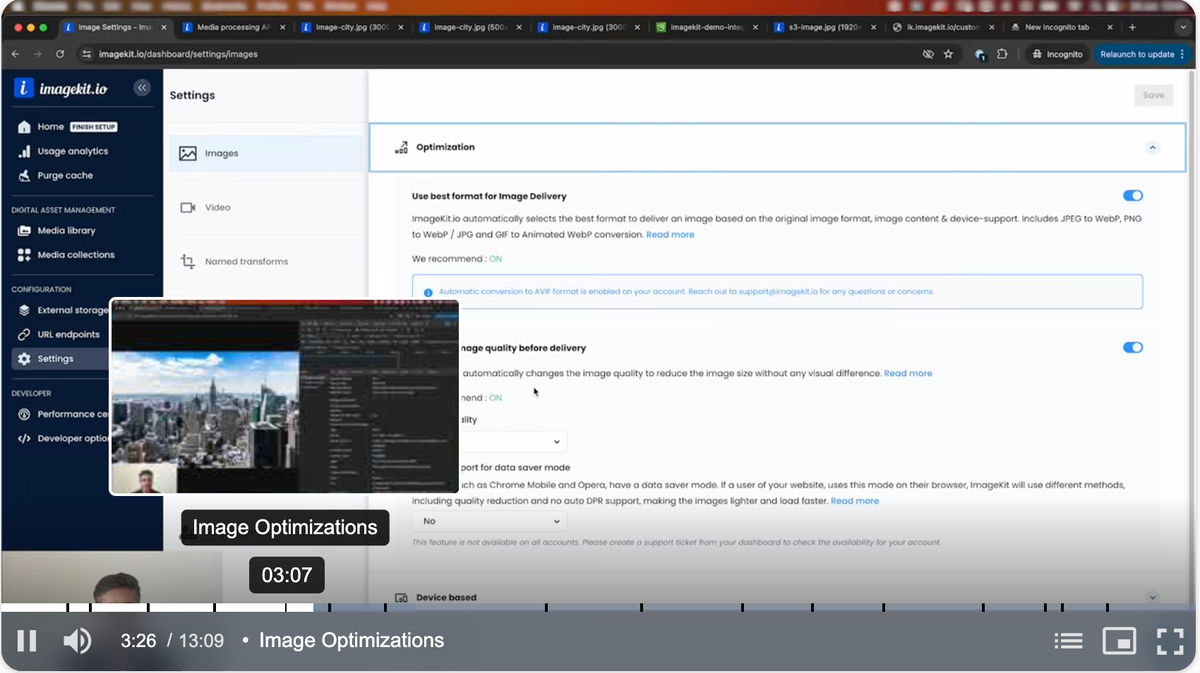
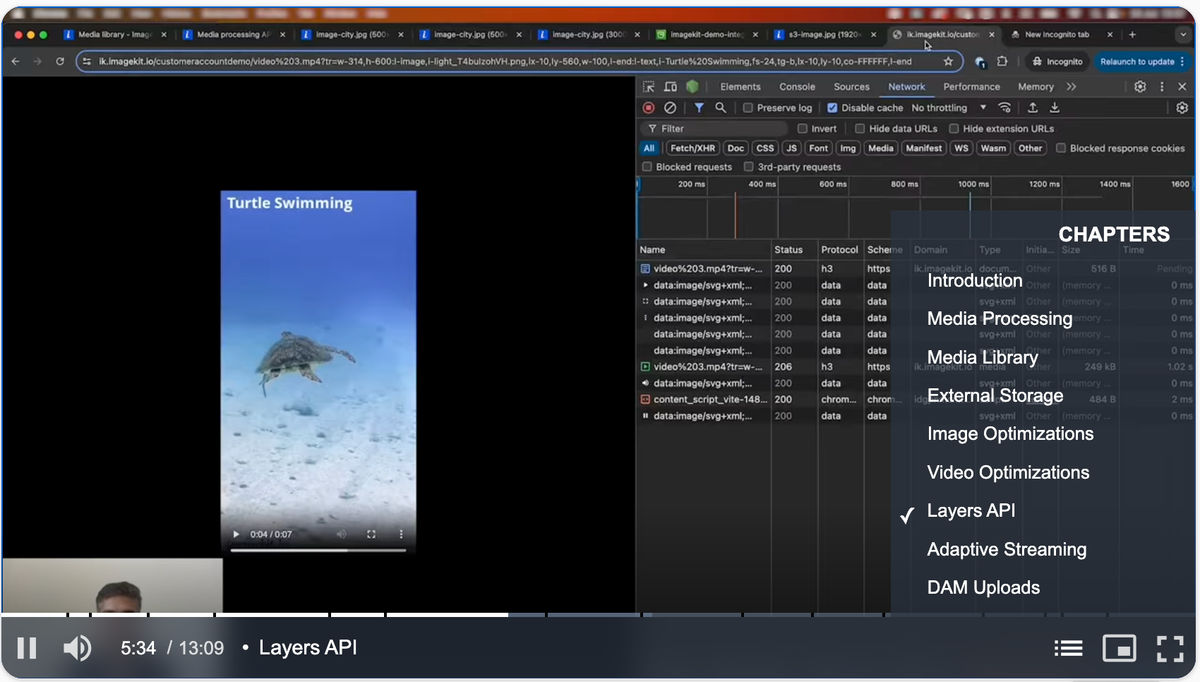
Chapter markers render on the progress bar, and a chapter button appears in the control bar with the list - no plugin, no custom UI code. The companion chapters-demo wires exactly this snippet into a single-page Next.js app.
Chapters from a WebVTT file
If you already have a .vtt file - from an existing pipeline, a subtitles team, or a hand-edited download - upload it to ImageKit as a raw file and reference the URL:
const source = {
  src: "https://ik.imagekit.io/<your-imagekit-id>/lesson.mp4",
  chapters: {
    url: "https://ik.imagekit.io/<your-imagekit-id>/lesson.chapters.vtt",
  },
};
The WebVTT format is exactly the one from Option 2 above. Same data, no player-plugin choice, no custom UI code.
AI-generated chapters
If you'd rather have chapters generated from the video itself, chapters: true hands the job to ImageKit's AI transcription. That path - and the companion subtitle track it produces - is covered in the AI subtitles and chapters tutorial.
AI transcription is a paid extension: 2 extension units per minute of source video, billed once for the bundle of subtitles and chapters (not per feature). Each additional language translation costs 2 units per minute for that language's subtitles and chapters. See extension unit pricing for details.
Which approach to use
- Container chapters - you're distributing the file for offline or desktop playback, and want the chapters travelling inside the video.
- Raw WebVTT + custom UI - you're comfortable owning the player, and want full control over the chapter menu and progress-bar rendering.
- WebVTT + a JavaScript player - you already ship one of those players, and adding chapters is a config change instead of a build.
- ImageKit Video Player SDK - you want the chapter UI to just work, want to keep the source of truth in your app data, and want the option to swap in AI-generated chapters later without changing the integration.
Conclusion
Chapters are a small feature with a surprisingly large number of moving parts. The container-embedded, WebVTT, and player-plugin routes all work - pick one based on where the video is being consumed and how much of the player stack you want to own.
If the video is being played through a web page and you'd rather not stitch four decisions together, ImageKit's Video Player SDK collapses the whole thing into a single chapters prop, with the same UI you'd otherwise build. Every shape - inline, WebVTT, and AI - reads from the same prop.
For richer video experiences on the same player, see How to add AI subtitles and chapters to videos on your Next.js site with ImageKit.
Sign up for a free ImageKit account and try chapters on a video you already have.